


Last updated 12th June 2026 to cover the version 24.1 release. I'll keep updating this article as Screaming Frog ship changes to the MCP, and every change is tagged with the version it arrived in so you can see exactly what landed when.
Screaming Frog on the 19th May shipped something genuinely interesting.
Version 24 of the SEO Spider came out, and while the changelog has the usual mix of quality-of-life updates and things that are nice but you'll use once and forget, the headline feature is different. For the first time in the tool's history, it ships with a built-in MCP server.
That means Claude, Cursor, LM Studio, and any other MCP-aware AI client can now talk directly to Screaming Frog. Start crawls. Check progress. Export data. Analyse results. All from a chat window, without once touching the SF interface.
I've been playing with it since its release. I'm going to give you my honest breakdown. What works, what doesn't, the prompts that are actually worth using, and a free Claude skill you can run right now.
First, a quick note on what's already been written
There are a few good pieces on the v24 MCP that came out in the first 48 hours. Claudio Novaglio published a solid technical comparison between the official MCP and his own custom Python version. The team at search.agency did a decent setup walkthrough. AllGreatThings ran it through Cursor and documented the gotchas.
All 100% worth reading. None of them are agency workflow guides.
That's what this is. Bringing the functionality directly into an agency workflow.
What just shipped and what the two versions are
The v24 MCP is Node.js-based, built directly into the Spider application, and documented in the official Screaming Frog user guide. You don't install a separate package. You update SF to v24 and the MCP server is just there (Settings > MCP Server).
Screaming Frog's own description of the scope: "You can now run crawls, analyse, export and manipulate data using the SEO Spider and Node.js within Claude, LM Studio and other AI chat assistants."
They also said something worth keeping in mind: "Not every feature and function is currently supported in the SEO Spider MCP. However, we plan to extend functionality based upon user feedback."
That last sentence matters. It means this is version one. It also means that if there's something missing that you want, now is exactly the right time to tell them.
The two versions, because people are confusing them
Before we go any further, let's clear something up. There are actually two different Screaming Frog MCP implementations floating around:
| Version | Who built it | Runtime | How it works |
|---|---|---|---|
| Official SF v24 MCP | Screaming Frog | Node.js | Built into the app, documented in the SF user guide |
| Community Python MCP | Independent (bzsasson on GitHub/PyPI) | Python 3.10+ | Wraps the SF CLI, installed separately |
They do similar things, but they're completely separate projects. The official one integrates with v24-specific features like Auto Compare Crawls. The community one gives you more flexibility if you want to write your own filters and pipelines.
For most agency workflows, use the official one. I'll come back to when you'd want the community version later.
The updates so far (this section will keep growing)
Screaming Frog said they'd extend the MCP based on user feedback, and they weren't kidding. This section tracks every release since launch, so you can see what changed and when. Anywhere else in the article that's been affected by an update is tagged with the version number too.
Version 24.1, released 8th June 2026
On paper this is a small bug-fix release. In practice, several of the changes are MCP-specific, and one of them closes the biggest functional gap I called out when this article was first published:
- Bulk Export > Issues > All now works via the MCP server, along with other non-HTML multi-file bulk exports that weren't available in v24. This was the most significant missing capability at launch, and item two on my "what to ask Screaming Frog to add" list below. Gone within three weeks.
- MCP Server progress now includes APIs and Crawl Analysis. This directly improves the "100% doesn't mean ready" blind spot covered later. Progress reporting now reflects connected API processing, so you get a much truer picture of when a crawl is actually finished.
- An 'Auto-start MCP Server on application launch' setting (for cloud). One less manual step before Claude can talk to SF.
- You can now download the MCP API as markdown via MCP > Configure > View Tools. Useful if you want to hand the full tool documentation to Claude or another client as context.
- Fixed the "Tool error: Page content size too large" error on the
sf_url_contenttool, which was tripping people up on heavier pages. - Fixed MCP server tools not working in non-English languages, and fixed MCP server logging to stdout in CLI mode.
- GSC read timeout increased from 20 seconds to 2 minutes. Relevant if you're using the GSC integration workflows covered later, larger properties were hitting timeouts.
There are a few non-MCP bits in there too (recently crawled URLs in the scheduled crawl seed textbox, a non-cumulative view for the Usage Stats graph, a URL Inspection fix), but the MCP items are the story.
Three weeks from launch to a release that fixes the single biggest gap and sharpens progress reporting. The rate of development here is really impressive, and I look forward to seeing what they do next.
The licence reality
The free Screaming Frog licence caps you at 500 URLs per crawl. The MCP inherits this limit. It doesn't unlock anything extra. For real client work, you need the paid licence, which is £199 per year per install as of May 2026.
To be fair, if you are an agency without a paid copy of Screaming Frog, do you even SEO? That said, it's worth mentioning before someone runs a production audit and wonders why they're looking at 500 URLs of a 40,000-page site. Another quick point: URLs are not the same as pages. You could have a 499-page website and the free version still won't crawl all of them, because images and other files all have their own crawlable URL and count toward that limit.
The question everyone's actually thinking (well, me beforehand to be fair): is MCP better than just uploading a CSV?
Here's the thing. A lot of SEOs already have a workflow that goes: run SF, export the CSV, upload it to Claude, ask questions. It works and it's simple. It doesn't require any setup.
So before getting into the mechanics of the MCP, it's worth being direct about when it's actually worth the effort.
Uploading a CSV to Claude wins when:
- You've already got the crawl and you just want quick analysis on a specific tab
- You're using Screaming Frog but also Sitebulb, Ahrefs or SEMrush Site Audits, or another crawler. The CSV approach works regardless of which tool you used
- You're doing a one-off piece of analysis and you don't need to trigger a new crawl
- You want zero setup time
The MCP earns its setup cost when:
- You want to trigger crawls directly from Claude without touching the SF interface
- You're running recurring audits (weekly client health checks, automated monitoring) where the manual export step is the friction you want to remove
- You want to chain SF crawl data with other MCPs (GSC, Ahrefs, SEMrush, DataForSEO) in a single Claude session. This is genuinely powerful and not possible with the CSV approach
- You want delta comparisons. The v24 Auto Compare Crawls feature works natively through the MCP, and doing this manually in Excel is one of the most tedious jobs in technical SEO
- You're building repeatable workflows that junior team members can run consistently
The honest answer: for a one-off analysis, upload the CSV. For anything recurring or multi-tool, set up the MCP. The setup takes 20 minutes. It pays back in the first recurring workflow you run.
One more thing. The MCP is not a replacement for knowing what you're looking at. If you can't interpret a crawl overview report, having Claude read it to you doesn't change that. The MCP removes friction from workflows you already understand. It doesn't create understanding.
Setup: Claude Desktop and Cowork, step by step
Before you start: the prerequisites checklist
- Screaming Frog updated to v24 (go to Help > Check for Updates in the SF app; if you're below v24, the MCP option simply doesn't exist)
- Paid SF licence (free version = 500 URL cap and the MCP inherits it)
- Claude Desktop or Cowork open and running
Route A: Claude Cowork (easier)
- Open Settings in Cowork
- Find the Extensions panel
- Add the Screaming Frog SEO Spider MCP extension
- Smoke test: type "list my recent crawls" in chat. If Claude lists your saved SF projects, you're connected.
Route B: Claude Desktop
- Locate your
claude_desktop_config.jsonfile- Mac:
~/Library/Application Support/Claude/claude_desktop_config.json - Windows:
%APPDATA%\Claude\claude_desktop_config.json
- Mac:
- Add the Screaming Frog MCP entry:
{
  "mcpServers": {
    "sf": {
      "command": "npx",
      "args": [
        "mcp-remote",
        "http://localhost:11435/mcp"
      ]
    }
  }
}
- Restart Claude Desktop completely
- Smoke test: ask Claude to call
sf_list_allowed_base_directoryand thensf_list_crawls. Both should return real data.
Note: use "sf" as your server key, not "screaming-frog". Long keys with hyphens cause tool naming issues in some clients because of an approximate 60-character combined name limit.
Set your base directory sensibly. The MCP needs a folder it's allowed to read from and write to. Keep it scoped to a dedicated directory like /Users/you/seo_spider_mcp_outputs/ or similar. Don't point it at your home directory. Everything the MCP produces (exports, generated scripts, reports) will end up in this folder.
A folder structure that works well in practice:
/seo-mcp/
└── clients/
    └── [client-name]/
        └── crawls/
            └── YYYY-MM-DD/
                ├── crawl_overview.csv
                └── issues_overview.csv
This makes audit evidence findable, comparable, and easy to share.
The blind spots you need to know before you start
These aren't buried caveats. They're the things that will break your workflow if you don't know about them upfront.
Blind Spot 1: How the database lock behaves depends on your connection mode.
This is the number one confusion point, and it isn't obvious unless you've hit it. It also depends on which of SF's two connection modes you're running.
- STDIO mode runs SF headless. It launches the application as required in the background, so you don't need to have SF already open. In this mode the GUI and the MCP can't both hold the database at once, so the safe workflow is: crawl in the GUI (where you have full control over JS rendering, custom extraction, crawl scope), then close the SF app completely, then use the MCP to analyse the results.
- Streamable mode (the
mcp-remotesetup shown above, connecting tohttp://localhost:11435/mcp) lets you keep a crawl open in the GUI and use Claude at the same time. What you can't do is run conflicting actions simultaneously. If you try to export from both the GUI and the MCP at the same moment, one will lock. But you can export in one, then export in the other. That's genuinely useful when you want to eyeball data in the GUI while Claude pulls the same export to verify its output.
If you're triggering crawls via the MCP directly, the crawl runs with SF's default settings unless you point it at a saved config profile. More on that shortly.
Blind Spot 2: 100% doesn't mean ready.
When you trigger a crawl via sf_crawl and it hits 100%, you might think it's done. It isn't necessarily. If you have connected APIs enabled in SF (PageSpeed, OpenAI integration) those continue processing after the URL crawl finishes.
If you immediately run sf_generate_report at this point, you'll get a "busy" response. Always poll sf_crawl_progress and wait until the status is fully idle before exporting.
Update (v24.1): MCP Server progress now includes APIs and Crawl Analysis, so sf_crawl_progress gives you a far more accurate picture of whether the crawl is actually done. The advice still stands, poll until fully idle, but you're much less likely to get caught out now.
Blind Spot 3: Modal dialogs block tool calls.
If you have a settings dialog or any modal window open in the SF application, MCP tool calls will fail. The app is waiting for your input on the modal and can't process external requests. Close all SF dialogs before running MCP actions.
Blind Spot 4: Use a short server key.
This one is specific to Cursor users but worth knowing generally. The MCP server key you assign affects how tool names are generated. Long keys or keys with hyphens can cause problems. One team found that "screaming-frog" broke tool naming in Cursor because of a character limit issue. Use "sf" as your server key and you'll get clean tool names like sf_crawl.
What the MCP can and can't do: the capability map
Here's the full picture based on testing and documentation.
What's confirmed working:
| Tool/Capability | Notes |
|---|---|
sf_crawl |
Start a crawl of a domain. Uses default settings unless you pass a saved .seospiderconfig file via config_path. Individual config options still can't be changed directly via MCP |
sf_crawl_progress |
Poll crawl status. Use this before any export to confirm the crawl is fully idle |
sf_generate_report |
Pull built-in reports including crawl_overview and issues_overview |
sf_list_crawls |
List saved crawls with database IDs |
sf_list_allowed_base_directory |
Confirm the base directory the MCP can access |
| Auto Compare Crawls | One of the best v24 features. Native delta between last two crawls |
sf_bulk_export_page_content |
Exports visible text or raw HTML for all crawled pages. The hidden gem, most people don't know this exists |
sf_export_embeddings |
Generates a CSV of URL embeddings. Combine with page content for semantic clustering without any Python |
sf_export_seo_element_urls |
Export URLs by tab and filter. Includes Analytics and Search Console tabs if those integrations are connected |
| Bulk Export > Issues > All (and other non-HTML multi-file exports) | Added in v24.1. The biggest gap at launch, closed within three weeks of release |
What doesn't work via MCP (yet):
| Capability | Status | Workaround |
|---|---|---|
| Crawl speed / user agent | MCP ignores UI speed settings entirely. Confirmed: 1 URL/sec set in UI, crawl completes 500 URLs in 20 seconds via MCP. Will get throttled on Shopify and Cloudflare-protected sites. | Save settings via File → Configuration → Save As as a .seospiderconfig file, then pass the file path to sf_crawl via config_path |
| Custom extraction data | Not configurable directly via MCP | Set up in the GUI, save as a .seospiderconfig profile, then pass that profile to sf_crawl via config_path |
| JavaScript rendering configuration | Not configurable directly via MCP | Set up in the GUI, save as a .seospiderconfig profile, then pass that profile to sf_crawl via config_path |
| Scheduled crawl triggering | Not a native MCP feature, but achievable as a workaround by combining sf_crawl with an external scheduler such as Claude's built-in task scheduling. Not the same as native support. |
Combine sf_crawl with Claude scheduled tasks |
When this article was first published, Bulk Export > Issues > All sat at the top of this table. It was added in v24.1, so it's moved up to the working list above. That's exactly the pattern you want to see from a version one release.
Full list of reports available via sf_generate_report:
Verified by querying the live MCP extension directly, not guessed from documentation.
Core reports: Crawl Overview, Issues Overview, Segments Overview, Insecure Content, SERP Summary, Orphan Pages
Redirects: Redirect Chains, Redirect & Canonical Chains, Redirects to Error, All Redirects
Canonicals: Canonical Chains, Non-Indexable Canonicals
Pagination: Non-200 Pagination URLs, Unlinked Pagination URLs
Hreflang (7 sub-reports): All Hreflang URLs, Non-200 Hreflang URLs, Unlinked Hreflang URLs, Missing Return Links, Inconsistent Language & Region Return Links, Non-Canonical Return Links, Noindex Return Links
Structured Data: Validation Errors & Warnings Summary, Validation Errors & Warnings, Parse Errors, Google Rich Results Features Summary, Google Rich Results Features
PageSpeed (20 reports including): Opportunities Summary, CSS/JS Coverage, Minification, Render Blocking, LCP Breakdown, Layout Shift Culprits, Third Parties, and more
Mobile: Viewport Not Set, Target Size, Content Not Sized Correctly, Illegible Font Size
Accessibility: Accessibility Violations Summary
Cookies: Cookie Summary
JavaScript: JavaScript Console Log Summary
That is a genuinely comprehensive list. Far more than most people realise is accessible via a single MCP tool call. The PageSpeed and Structured Data coverage in particular is worth noting: you're not just getting a crawl summary, you're getting the full audit stack in one session.
Five prompt chains that replace real work
These are tested. Copy-paste them, adjust the domain and parameters, and they should work.
1. The weekly crawl health check
Before MCP: Run SF, wait, open the Overview tab, export to CSV, compare manually against last week's export in Excel. Call it 45 minutes of your life you're not getting back.
With MCP:
Run a crawl of [domain] and wait until it's fully complete, including any connected API processing.
Then generate the crawl_overview and issues_overview reports.
Compare against the previous crawl for the same domain using Auto Compare.
Give me only the net-new issues: things flagged this week that weren't flagged last time.
For each new issue: what it is, which URLs are affected, estimated SEO impact (high / medium / low), and the most likely cause.
Order by estimated impact, not alphabetically.
What this removes is the manual delta work. The "which issues are new versus pre-existing" question that agencies answer inconsistently, usually in a spreadsheet, usually slower than they should.
2. The pre-launch QA pass
Before MCP: Open six different SF tabs, manually check each category, write notes in a separate doc, export CSVs, cross-reference. Two hours if you're fast.
With MCP:
Crawl [staging URL] with a maximum of [X] URLs.
When complete and fully idle, check for and report on:
- Broken internal links (4xx responses)
- Redirect chains of three or more hops
- Pages missing canonical tags
- Pages set to noindex that shouldn't be
- Mixed content warnings (HTTP assets on HTTPS pages)
- Missing title tags
- Duplicate title tags
- Missing meta descriptions
- Pages blocked by robots.txt

For each issue: list the affected URLs, explain the SEO or UX risk, and give a one-line fix instruction.
Mark anything that would cause an immediate indexing problem as CRITICAL.
Everything else as HIGH, MEDIUM, or LOW priority.
The value here isn't just speed. It's consistency. Every pre-launch check covers the same ground, in the same order, every time. No more relying on whoever does the check to remember what to look for.
3. The content cannibalisation finder
This is the one that genuinely surprised me when I tested it. The v24 MCP exposes two tools most people haven't discovered yet: sf_bulk_export_page_content (pulls the visible text or raw HTML of every crawled page) and sf_export_embeddings (generates a CSV of URL embeddings). Together, they mean you can do semantic clustering inside a single Claude session without writing a line of Python.
With MCP:
Pull the full page content export for the most recent crawl of [domain].
Generate embeddings for each page.
Cluster the pages by semantic similarity.
Identify clusters where three or more pages appear to be targeting the same search intent.
For each cluster: list the URLs, describe the overlapping topics, and recommend which page should be the canonical version to consolidate around, and which pages should be redirected or consolidated into it.
Flag clusters where pages are directly competing for the same primary keyword as HIGH PRIORITY.
This used to require a separate tool. Sitebulb's content similarity report, a custom Python script, or a third-party cannibalisation checker. Doing it inside the same conversation as the crawl is a genuine workflow shift.
4. The client reporting brief
Before MCP: Export the issues overview, filter it in Excel to remove noise, write a plain-English summary, format it into something a client can read without their eyes glazing over. An hour, minimum.
With MCP:
Pull the latest crawl and issues overview for [domain].
Write a client-ready technical SEO brief with:
- Executive summary: three sentences maximum. Overall site health, the single most important priority, and one positive observation.
- Top 3 critical issues: what each one is, why it matters commercially, and what to ask the developer to do. No SEO jargon.
- Top 5 quick wins: high-impact, low-effort fixes that could go into the next sprint. Explain each in one sentence.
- What's working well: two or three things that are genuinely in good shape. Clients need to hear good news.
- Watch list: lower-priority items worth monitoring but not urgent.

Write in plain English. Assume the reader is a business owner, not a technical SEO. No acronyms without explanation.
The translation layer between crawl data and client communication is where agencies lose hours every week. This makes it repeatable, consistent, and significantly faster.
5. The competitor teardown
Before MCP: Open SF twice, crawl the competitor, export their data, manually compare it against your client's data with both spreadsheets open in separate windows. Half a day of eye strain.
With MCP:
Crawl [competitor domain] with a maximum of [X] URLs.
When complete, export: internal pages, page titles, meta descriptions, H1s, and the issues overview.
Then pull the equivalent data from the most recent crawl of [client domain].

Compare the two sites and give me:
- How their site architecture differs from the client's (crawl depth, internal link distribution, orphaned pages)
- On-page patterns they use consistently that the client doesn't
- Technical issues on the competitor's site that we could highlight as a differentiator
- Structural patterns in their top content sections that the client is missing
- Any areas where the competitor is clearly ahead and we should prioritise closing the gap

Focus on actionable differences, not observations. For each gap, suggest what the client should do about it.
Putting both crawls into the same Claude session means the comparison happens with full context rather than a human trying to hold two spreadsheets in their head simultaneously.
The prompts above are ready to use as-is. Adjust [domain], [X URLs], and [client domain] for each job.
The Claude skill: SF Audit Brief
Before getting into this, a proper nod to Suganthan Mohanadasan's technical SEO audit skill. He built something genuinely useful: upload a crawl export from Screaming Frog, Sitebulb, Ahrefs, or any other crawler and the skill handles scoring, prioritisation, and reporting. The three-dimension scoring methodology in the SF Audit Brief builds directly on his approach. Worth having installed alongside this one, if you're working from an existing export or a tool other than SF, his skill is the right one to reach for.
The difference is one thing: no file upload step.
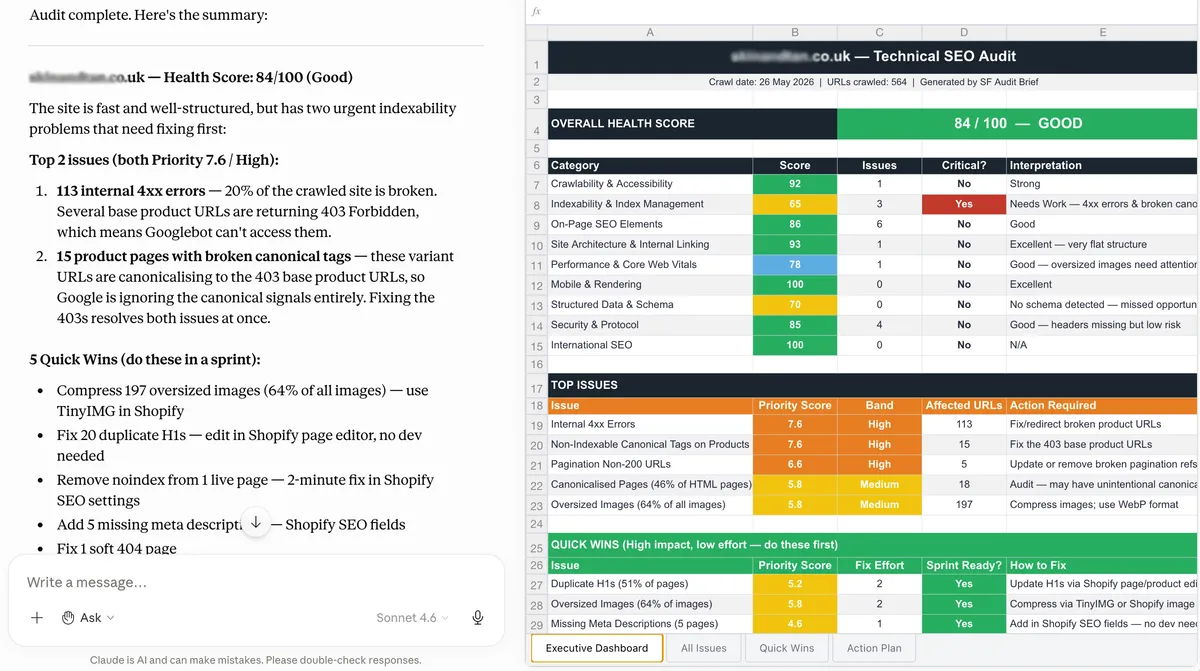
This skill uses the live MCP connection. No export, no upload, no manual steps. You give it a domain and it handles everything from there: connection check, crawl, reports, scoring, and full output in one session.
One-time setup for Shopify and bot-protected sites
Why this matters MCP crawls ignore SF's UI speed settings entirely. For Shopify or Cloudflare-protected sites this matters, default crawl speed will get you throttled and you'll end up with a fraction of the real URL count.
The fix (one-time setup) In SF:
- Set Configuration → Speed to 1 URL/second
- Set Configuration → User-Agent to Googlebot
- Go to File → Configuration → Save As and save as
slow-crawl.seospiderconfiginto~/seo_spider_mcp_server/The skill will detect that file automatically every time it crawls a bot-protected site. You set it once and never touch it again.
To run it:
Run an SF audit brief on [domain]
That's it. Claude handles everything from there.
What it does:
- Confirms the connection by calling
sf_list_allowed_base_directoryandsf_list_crawls. If the MCP doesn't respond, it stops and tells you exactly what's wrong rather than failing silently. - Uses
sf_list_crawlsto check whether a recent crawl exists for the domain within the last seven days. If yes, it uses it. If no, it asks whether to run a fresh one. - Gathers context. Auto-detects site type and scale, asks one question about which pages drive revenue.
- Queries GA4 and GSC filter data via MCP. If you had those integrations connected in SF before the crawl, the skill uses the Analytics and Search Console tab filters to identify which affected pages have real traffic and which indexable pages Google hasn't indexed. More on this in a moment.
- Pulls targeted reports (crawl overview, issues overview, plus PageSpeed, structured data, redirect chains) based on what the site actually has.
- Scores every issue on three axes: SEO Impact (1-10), Business Impact (1-10), and Fix Effort (1-10), combined via a weighted priority formula.
- Calculates a health score out of 100, per audit category and overall.
- Outputs two things:
- A structured Markdown brief: executive summary, issues scored and grouped by priority band, quick wins as a standalone sprint list, developer tickets for the top three critical issues, and a delta vs the previous crawl if Auto Compare data is available
- An XLSX action plan: all issues with scores and fix instructions, a quick wins tab, and a week-by-week implementation timeline with effort estimates
The GA4 and GSC angle is worth explaining properly.
SF integrates with GA4 and GSC via Configuration > API Access. When connected before a crawl runs, the data populates into the Analytics and Search Console tabs in SF. Those tabs are directly queryable via the MCP using sf_export_seo_element_urls.
What that actually means in practice: the MCP can tell you which pages received any GA4 sessions, which indexable pages Google hasn't indexed, which pages Google is marking as not mobile-friendly, and where Google is overriding your declared canonicals. It uses SF's filter segments rather than raw metric values (the actual session counts and click numbers stay in SF's UI), but the segmentation itself is exactly what you need for prioritisation.
A broken canonical on a page with confirmed GA4 traffic scores differently to the same issue on a page with none. A page the crawl flags as indexable that GSC marks as "not on Google" is a confirmed indexation failure, not a theoretical one. That cross-referencing is what the skill does automatically. And it's not possible at all in a file-upload workflow.
If you don't have GA4 and GSC connected in SF yet, the skill still works. It just scores from crawl data alone and flags the integration setup as a recommendation. It's a one-off config in SF that improves every audit from that point forward.
Official v24 MCP vs. the community Python MCP
Claudio Novaglio published the most detailed comparison of these two on 19 May, worth reading in full if you want the technical depth. My shorter version:
| Dimension | Official SF v24 | Community Python (bzsasson) |
|---|---|---|
| Who maintains it | Screaming Frog Ltd | Independent developer |
| Runtime | Node.js | Python 3.10+ |
| Install | Bundled with v24 | pip install screaming-frog-mcp or uvx screaming-frog-mcp |
| Maintenance burden | Zero. Updates with SF releases | You're responsible |
| v24 feature support | Full (Auto Compare, system prompt, etc.) | Limited to CLI-exportable tabs |
| Customisability | No | Open source. Extend as needed |
My recommendation: Start with the official. If you need advanced regex filtering, custom analysis pipelines, or integration with proprietary tools that the official doesn't support, the community one is worth the maintenance overhead. For most agency work, the official is lower friction and better integrated.
The honest limitations
A few things that need saying plainly.
SF has to be available somewhere. The MCP server is built into the desktop application, not cloud-hosted, so it runs on your machine rather than server-side. Whether you have to open SF yourself depends on the mode: in Streamable mode the app needs to be open; in STDIO mode it runs headless and launches SF as required, so you don't have to open it first. Either way, it needs SF installed on a running machine, as you can't run this as a fully cloud-hosted MCP without an instance of Screaming Frog available somewhere. A small always-on machine, whether that is a spare Mac Mini, office machine, or a properly configured remote desktop environment solves the practical automation problem.
The database lock behaviour depends on connection mode. Covered above, but worth repeating: in STDIO mode the GUI and the MCP can't both hold the database, so close the SF app before analysing crawl data via MCP. In Streamable mode you can keep a crawl open and use Claude at the same time. You just can't run conflicting actions (like exporting from both) at the exact same moment, or one will lock.
Large crawls will saturate the context window. Don't ask Claude to load the full page content of 20,000 URLs into a single conversation. Be selective about which exports you pull and which URLs you include. For large sites, filter down to a subset (by section, by crawl depth, by issue type) before pulling content into context.
Bulk exports: fixed in v24.1. At launch, Bulk Export > Issues > All wasn't available via MCP, and other non-HTML multi-file bulk exports were missing too. You needed the SF GUI for those. I called it the most significant functional gap in the release. As of v24.1 (8th June 2026) you can run Bulk Export > Issues > All and the rest of the non-HTML multi-file bulk exports through the MCP server, so this limitation is gone.
The MCP can't adjust the config, but it can use a saved config profile. You can't change individual configuration settings (custom extraction, JS rendering, robots.txt handling, and so on) through the MCP itself. What you can do is set everything up once in the GUI, save it as a config profile, and point a crawl at that profile via the config_path parameter. In practice that means copying your saved config profiles into the MCP folder and instructing Claude which one to use for a given crawl. It's clunky, but it's the supported way to control crawl configuration today. If your audit depends on custom extracted data (schema fields, specific on-page elements) or JavaScript rendering, build that into a profile before you crawl.
MCP crawls ignore SF's UI speed settings. This catches people out on Shopify sites. I found this the hard way. You set the crawl speed to 1 URL/second in Configuration, trigger via MCP, and it crawls 500 URLs in 20 seconds anyway. The UI settings don't carry through. On a large Shopify store with bot protection, that means you get a fraction of the real URL count and no indication anything went wrong.
There is a workaround, and it's a one-time setup. SF's crawl tool accepts a config_path parameter, a path to a saved .seospiderconfig file. Set your speed and user agent in SF, go to File → Configuration → Save As, save it as slow-crawl.seospiderconfig into ~/seo_spider_mcp_server/, and you're done. The SF Audit Brief skill will detect that file automatically and use it whenever it's auditing a bot-protected site. You never have to think about it again.
The underlying issue still needs fixing natively. Crawl speed and user agent should be directly configurable via MCP without this workaround. But the one-time setup takes about two minutes and makes Shopify audits fully hands-off from that point forward.
GA4 and GSC auto-connect, but only to the last account used. SF has an Auto Connect on Start option for each integration under Configuration > API Access > GA / GSC. With it enabled, the connection re-establishes automatically when SF starts, so it's not a fully manual reconnect each session. The catch: it reconnects to whichever account and profile you last selected. If you work on a single domain, that's perfect and hands-off. If you're crawling lots of sites across different GA4/GSC accounts and profiles, it won't pick the right one for you, so you'll still need to open SF, go to Configuration > API Access, and select the correct account and profile before the crawl runs. There's no MCP equivalent for switching accounts.
What to ask Screaming Frog to add
SF have said they'll extend the MCP based on user feedback. Right now, in the first weeks of release, individual requests actually carry weight. If you want these features, tell them:
- Crawl speed and user agent configurable via MCP directly: the most urgent gap. Right now MCP crawls ignore UI settings and there's no way to control speed without a saved config file workaround. Shopify audits are broken without it.
- Bulk Export > Issues > All via MCP:
the second most useful missing capabilityDelivered in v24.1. Asked for it, got it, within three weeks. Leaving it on the list as proof that telling them what you want actually works. - Full crawl configuration via MCP: JS rendering, robots.txt handling, custom extraction, everything currently under the Configuration menu, so you can set up a crawl programmatically without touching the GUI first
- Native scheduled crawl triggering via MCP: currently achievable as a workaround using Claude's task scheduler, but first-class native support would make automated monitoring significantly more robust
Update: Since publishing, Screaming Frog's team confirmed that plaintext config files, ones you could adjust programmatically, or via the MCP are on their radar. That would directly address the configuration gap above, so the top items on this list are already being considered which is pretty damn cool if you ask me! (I know you didn't) And with v24.1 already crossing one item off this list, the precedent is set. They ship, and they ship quickly.
You can reach Screaming Frog support at screamingfrog.co.uk/support.
The bigger picture
Screaming Frog shipping an official MCP server is the first major desktop SEO crawler to do this. Sitebulb have said MCP functionality is coming. There are cloud-based MCPs in the SEO space (Sistrix released one in August 2025) but those query aggregated server-side data. This is different. You're running crawls on your machine, on your clients' sites, with your parameters, and feeding the raw output directly into an AI session.
The natural next step, and it will happen, is chaining this with keyword data, backlink data, and traffic data in a single session. Ahrefs has a community MCP. DataForSEO has an MCP. GSC has a community MCP with nearly 900 GitHub stars. When you can ask Claude to cross-reference crawl issues with keyword opportunity and GSC performance in one conversation, without a single file export, the audit workflow changes fundamentally.
SF got there first on crawl data. Use that advantage now, while the documentation gap still exists and the first-mover content is thin on the ground.
Get the SF Audit Brief skill
The SF Audit Brief skill is free, MIT licence, and available on GitHub. Download SKILL.md from the repo and follow the install instructions in the README for Claude Desktop or Cowork. Run it on any domain where you have a recent SF crawl and it'll output the full brief in under two minutes.
If you find something that doesn't work as expected, raise an issue. If you improve it, send a pull request.